
Meta Ads Campaign Issues: Common Problems and How to Fix Them
Last Updated on October 31, 2026 by chada sravas
Ads Stuck in Preparing or Not Spending
An advertisement can show as Active in Meta Ads Manager without generating impressions or spending its allocated budget. This can happen when the ad is still processing, awaiting review or facing account or delivery restrictions.
Common reasons include:
- Campaign start date is set incorrectly.
- Ad is still undergoing review.
- Payment method has failed.
- Account spending limit has been reached.
- Audience targeting is too narrow.
- Bid or cost controls are restricting delivery.
- Facebook Page or Instagram account has restrictions.
- Creative processing has not completed.
How to troubleshoot ads that are not spending:
1. Open Ads Manager and check the Delivery column.
2. Review the campaign, ad set and individual ad statuses.
3. Verify campaign schedules and ad set budgets.
4. Check Billing & Payments for outstanding balances.
5. Review audience size, placements and bidding settings.
6. Confirm that the advertisement has completed processing and review.
7. Contact Meta Support if the advertisement remains inactive without a clear explanation.
An Active campaign does not guarantee that its individual ads are delivering. Always check delivery at all three levels.
Ad Rejections and Advertising Policy Violations
Meta reviews advertisements before allowing them to run across Facebook and Instagram. Advertisements that violate its advertising policies may be rejected or restricted.
Common reasons for ad rejection include:
- Misleading advertising claims.
- Unsupported product or service claims.
- Content referring to sensitive personal attributes.
- Restricted products or services.
- Copyright and intellectual property violations.
- Broken or misleading landing pages.
- Incorrect disclosures.
- Incorrect Special Ad Category selection.
How to fix rejected advertisements:
1. Open Ads Manager or Account Quality.
2. Read the rejection notification carefully.
3. Identify whether the issue relates to ad copy, creative, targeting or landing page content.
4. Correct the specific policy violation.
5. Submit the corrected advertisement for review.
6. If you believe Meta rejected the advertisement incorrectly, request another review.
When it comes to housing, employment and financial products, determine whether the advertisement falls within a Special Ad Category. Special Ad Categories come with some specific advertising and targeting rules.
Do not keep submitting rejected adverts without fixing the problem.
Account Restrictions and Security Verification
Restrictions related to advertising can have an impact on a particular advertisement, advertisement account, page in Facebook, account in Instagram, or the business portfolio.
These restrictions may stop advertisers from conducting new advertising campaigns or managing their advertisements already placed.
Common account-related problems include:
- Disabled advertising accounts.
- Restricted Business Portfolios.
- Facebook Page restrictions.
- Instagram account restrictions.
- Identity verification requirements.
- Two-factor authentication problems.
- Suspicious account activity.
- Advertising permission issues.
How to troubleshoot account restrictions:
1. Open Meta Account Quality.
2. Identify which advertising asset has been restricted.
3. Read the restriction details.
4. Complete any requested identity or business verification.
5. Submit a review request if you believe the restriction is incorrect.
6. Check Business Settings to verify account access and permissions.
Never create additional advertising accounts to avoid current limitations. Meta may recognize attempts to evade its enforcement systems and institute further controls.
Meta Ads Manager Technical Issues
On some occasions, advertisers face technological difficulties even if their campaign settings are correct. Such problems can have an impact on the process of creating the campaign, making changes to it, reporting on it and publishing it.
Common technical problems include:
- Ads Manager not loading.
- Campaign changes not saving.
- Ad previews not displaying.
- Reporting data not updating.
- Campaign duplication failures.
- Publishing buttons not responding.
- Unexpected error messages.
- Changes remaining stuck during processing.
How to troubleshoot technical problems:
- Refresh Meta Ads Manager.
- Try another browser or an incognito window.
- Clear browser cache and cookies.
- Check your internet connection.
- Verify whether the campaign changes were saved.
- Check whether the issue affects multiple campaigns.
- Review Meta’s service status updates where available.
If the issue continues, capture a screenshot and contact Meta Support with the affected campaign and ad IDs.
Meta Pixel and Conversion Tracking Issues
Meta Pixel and Conversions API help advertisers measure website activity and campaign conversions. Incorrect tracking configurations can affect conversion reporting and campaign optimization.
Common tracking problems include:
- Pixel not detected on the website.
- Pixel not receiving events.
- Purchase events not recording.
- Duplicate conversion events.
- Incorrect event parameters.
- Conversions API configuration problems.
- Domain verification issues.
How to troubleshoot tracking problems:
1. Open Meta Events Manager.
2. Select the relevant data source.
3. Check whether the Pixel is receiving events.
4. Use Test Events to verify website activity.
5. Check whether events such as PageView, ViewContent, AddToCart and Purchase are working.
6. Verify event deduplication when using both Pixel and Conversions API.
7. Check the website’s GTM configuration if tracking is implemented through Google Tag Manager.
Do not assume that every difference between Meta Ads conversions and GA4 conversions indicates a tracking failure. Both platforms can report different conversion numbers because of attribution settings, reporting windows and measurement methods
Meta Lead Ads and CRM Integration Issues
Lead generation campaigns can experience problems when instant forms, CRM integrations or third-party lead management platforms are not configured correctly.
Common problems include:
- Leads not appearing in the CRM.
- Delayed lead notifications.
- Duplicate leads.
- Missing contact information.
- Facebook Page permissions expiring.
- CRM integration disconnections.
- Webhook or API errors.
How to troubleshoot lead integration problems:
1. Check whether the lead is available in Meta Business Suite or Leads Center.
2. Verify that the correct Facebook Page is connected to the CRM.
3. Review CRM integration permissions.
4. Check whether the lead form is mapped to the correct CRM fields.
5. Test the integration using a test lead.
6. Verify webhook or API activity if the integration uses custom development.
7. Contact the CRM provider if Meta generates leads but the CRM does not receive them.
If you use WhatsApp or another external messaging platform for lead follow-ups, check its integration and delivery status separately.
How to Troubleshoot Meta Ads Campaign Issues
If a campaign suddenly terminates or bumps into a technical glitch, make sure to verify what is the problem before taking any action.
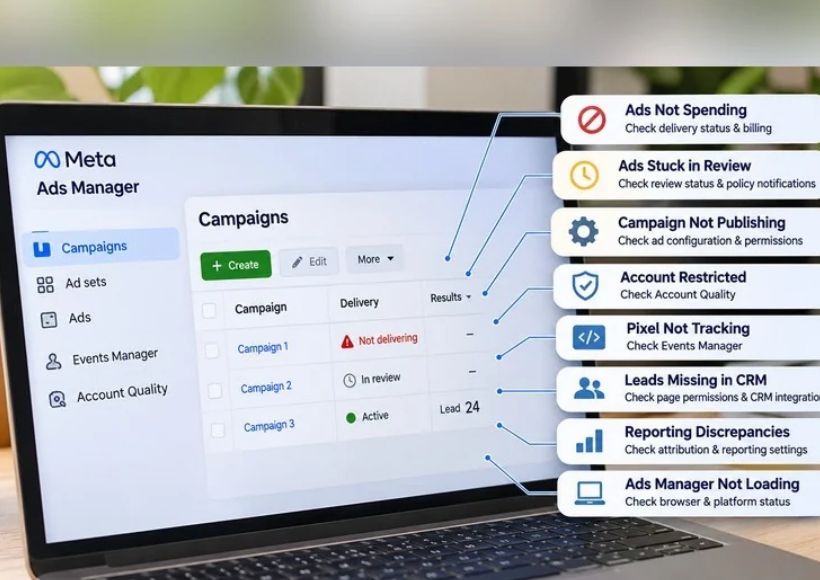
| Problem | First thing to check |
| Ads Not Spending | Delivery status and billing |
| Ads Stuck in Review | Review status and policy notifications |
| Campaign Not Publishing | Ad configuration and account permissions |
| Account Restricted | Account Quality |
| Pixel Not Tracking | Events Manager |
| Leads Missing in CRM | Page permissions and CRM integration |
| Reporting Discrepancies | Attribution and reporting settings |
| Ads Manager Not Loading | Browser and platform status |
Don’t change more than one element at the same time. Find out what is wrong, fix it, and see if your campaign will start working again.
When to Contact Meta Support
Reaching out to Meta Support is advisable in case of your campaign failure even after confirming that everything is correct in your ad account, advertising settings, and apps that connect to your campaign.
Before submitting a support request, collect:
- Ad Account ID.
- Campaign ID.
- Ad Set ID.
- Ad ID.
- Screenshot of the problem.
- Complete error message, if available.
- Date and time when the issue occurred.
- Troubleshooting steps already attempted.
This information will allow Meta Support to comprehend a campaign situation and conduct an investigation properly.
Also Read : Meta Ads Error Codes: Common Meanings and Fixes
