
Vertical Lines on Laptop Screen: Causes, Fixes, and When to Replace It
Last Updated on July 30, 2026 by chada sravas
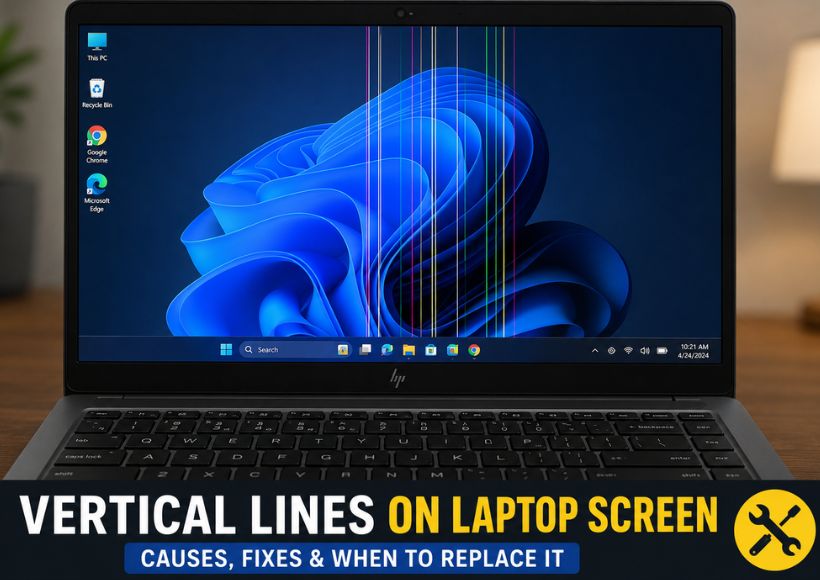
There is nothing more annoying than opening your laptop and discovering vertical lines on the screen. The lines appear in black, white, green, pink, or different colors and can range from a single line to several thick lines taking over most of the screen.
The good news is that vertical lines don’t always mean your laptop screen is permanently damaged. In some cases, the problem is caused by outdated graphics drivers or a loose display cable, both of which can often be fixed without replacing the screen. However, if the lines are caused by physical damage or a failing LCD panel, replacing the display may be the only permanent solution.
We explain the most common causes of vertical lines on a laptop screen, how to diagnose the issue, and the best ways to fix it before spending money on repairs.
What Do Vertical Lines on a Laptop Screen Mean?
The presence of vertical lines suggests that something is affecting the operation of the graphics processor, namely the way in which the image data is received or displayed. Software, the graphics hardware, the screen cable, or the LCD can cause it.
The line pattern normally helps to determine the cause of the problem.
For example:
- A single thin black line may indicate a damaged row of pixels.
- Multiple colored lines often suggest LCD panel failure.
- Flickering lines that change when you move the laptop lid usually point to a loose or damaged display cable.
- Lines appearing on both the laptop display and an external monitor may indicate a graphics processor (GPU) or motherboard issue.
Understanding these symptoms can save you time and help avoid unnecessary repairs.
Similar display issues aren’t limited to laptops. Smartphone users also experience screen line problems caused by hardware defects or display damage. If you’re curious about why green lines appear on OnePlus devices and whether they can be repaired, read our detailed guide on What Is the Green Line in OnePlus?
Common Causes of Vertical Lines on a Laptop Screen
Loose or Damaged Display Cable
A loose or damaged display cable is one of the most common reasons for the above-mentioned problems (called eDP or LVDS, respectively).
The cable connects the motherboard to the laptop monitor. Over time, opening and closing the laptop leads to the cable connector loosening or the cable itself wearing out.
Common Symptoms
- Lines appear when opening or closing the lid.
- The display flickers.
- Tilting the screen changes the position of the lines.
- The image returns temporarily after adjusting the screen angle.
If these symptoms match your laptop, inspecting or reseating the display cable should be one of the first hardware checks.
Damaged LCD Panel
A damaged LCD panel is another leading cause of permanent vertical lines.
This usually happens because of:
- Dropping the laptop
- Pressure on the screen
- Closing the lid with an object on the keyboard
- Internal panel failure due to age
A damaged LCD often cannot be repaired and usually requires a screen replacement.
Signs of LCD Damage
- Pressing the screen causes more lines to appear.
- Lines gradually increase over time.
- The display flickers permanently.
- Colored lines remain visible even after restarting the laptop.
Graphics Driver Problems
Software issues can sometimes create display artifacts that resemble hardware failures.
Graphics driver corruption may occur after:
- Windows updates
- Driver installation errors
- System crashes
- Malware infections
Fortunately, driver-related issues are often easy to resolve by updating or reinstalling the graphics driver.
Faulty Graphics Card (GPU)
Although less common, a failing graphics processor can also produce vertical lines.
Typical symptoms include:
- Lines appearing on both the laptop screen and an external monitor.
- Frequent system crashes.
- Blue Screen of Death (BSOD).
- Screen freezing during games or graphics-intensive tasks.
GPU failures generally require professional repair or motherboard replacement.
Physical Damage
Even if the screen doesn’t appear cracked, internal display layers can be damaged by:
- Dropping the laptop
- Twisting the display
- Excessive pressure
- Liquid damage
Internal cracks often begin as one or two lines before spreading across the display.
6. Overheating
If the overheating continues for an extended period of time, it can impact the graphic performance and sometimes result in momentary display issues. If the lines are gone after the laptop cools down, then it could be implied that the overheating is causing the issue. However, permanent lines in the hardware occur more often due to a malfunction of the device rather than overheating.
How to Diagnose Vertical Lines on Your Laptop Screen
Before replacing any parts, perform these simple tests to identify the actual cause.
Test 1: Take a Screenshot
Press:
Windows + PrtScn
Now view the screenshot on another device.
Results
If the lines appear in the screenshot:
The issue is likely related to:
- Graphics drivers
- GPU
- Software
If the screenshot looks normal:
The problem is most likely with:
- LCD panel
- Display cable
- Display connector
Test 2: Check the BIOS Screen
Restart your laptop and enter the BIOS or UEFI menu.
If the lines appear before Windows starts, the issue is almost certainly hardware-related.
If they only appear after Windows loads, software or graphics drivers may be responsible.
Test 3: Connect an External Monitor
This is one of the most reliable diagnostic methods.
| External Monitor Result | Most Likely Cause |
| External display works normally | LCD panel or display cable |
| External display also shows lines | GPU or motherboard |
| Both displays flicker | GPU or graphics driver |
Test 4: Move the Laptop Lid
Slowly open and close the laptop lid.
If the lines:
- flicker
- disappear
- change position
- become worse
then the display cable or LCD panel is likely faulty.
Test 5: Apply Gentle Pressure
Very lightly press around the area where the lines appear.
If additional lines appear or disappear, the LCD panel’s internal connection may be damaged.
Do not press hard, as this can worsen the damage.
How to Fix Vertical Lines on a Laptop Screen
Fix 1: Restart Your Laptop
Temporary display glitches sometimes disappear after a reboot.
This should always be your first troubleshooting step.
Fix 2: Reset the Graphics Driver
Press:
Ctrl + Shift + Windows + B
Your screen will briefly flash, and you may hear a beep.
This restarts the graphics driver without restarting Windows.
Fix 3: Update or Reinstall Graphics Drivers
- Open Device Manager.
- Expand Display adapters.
- Right-click your graphics device.
- Select Update driver.
If updating doesn’t help:
- Uninstall the graphics driver.
- Restart the laptop.
- Install the latest driver from your laptop manufacturer’s website.
Fix 4: Boot into Safe Mode
Safe Mode loads Windows with minimal drivers.
If the vertical lines disappear in Safe Mode, a third-party driver or software conflict is likely responsible.
Fix 5: Check the Display Cable
If you’re comfortable opening your laptop:
- Turn off the laptop.
- Disconnect the charger.
- Disconnect the battery if possible.
- Inspect the display cable.
- Reseat the connector.
If the cable is damaged, replace it with a compatible replacement.
Fix 6: Replace the LCD Panel
If:
- The external monitor works normally.
- The cable is secure.
- The screen changes when pressed.
- The lines continue spreading.
The LCD panel is likely damaged and should be replaced.
Repair or Replace?
| Problem | Recommended Solution |
| Outdated graphics driver | Update or reinstall driver |
| Loose display cable | Reseat or replace cable |
| Damaged display cable | Replace cable |
| Cracked LCD panel | Replace screen |
| GPU failure | Professional repair |
| Motherboard issue | Service center diagnosis |
Can You Continue Using a Laptop with Vertical Lines?
It depends on the cause.
If the issue is software-related, continued use is generally safe after troubleshooting.
However, if the LCD panel is physically damaged, the lines may spread over time and make the display difficult to use. Continuing to open and close the lid aggressively can worsen a damaged cable or panel.
How to Prevent Vertical Lines on Your Laptop Screen
You can reduce the risk of display damage by following these tips:
- Open and close the lid gently.
- Avoid placing objects on the keyboard before closing the laptop.
- Transport your laptop in a padded case.
- Keep liquids away from the display.
- Update graphics drivers regularly.
- Prevent overheating by cleaning air vents and using the laptop on a hard surface.
- Avoid applying pressure to the screen when cleaning it.
Conclusion
Vertical lines on a laptop screen can be alarming, but they don’t always mean your device is beyond repair. Start by performing simple diagnostics such as checking the BIOS, taking a screenshot, connecting an external monitor, and observing whether the lines change when you move the lid. These tests can quickly determine whether software, the display cable, the LCD panel, or the graphics hardware cause the issue.
Often, simply updating the graphics driver or properly fixing a display cable will restore your display. But if those lines don’t go away, appear “alive” under pressure, or appear all the way into BIOS, the LCD panel is probably broken and needs to be replaced. Fixing the problem to understand what is going on will help you avoid unwarranted costs for new pieces.
Frequently Asked Questions
Can vertical lines on a laptop screen be fixed?
Yes. If the issue is caused by outdated graphics drivers or a loose display cable, it can often be repaired. If the LCD panel is physically damaged, replacing the screen is usually the only permanent solution.
Why do vertical lines increase over time?
This often indicates internal LCD damage or a failing panel connection. As the damage worsens, additional lines may appear across the display.
Why do the lines change when I move the laptop lid?
This usually points to a loose or damaged display cable or a failing LCD panel.
Can a graphics driver cause vertical lines?
Yes. Corrupted or outdated graphics drivers can cause display artifacts, although permanent vertical lines are more commonly caused by hardware issues.
How do I know if the GPU is failing?
Connect your laptop to an external monitor. If the external display also shows vertical lines or graphical glitches, the GPU or motherboard may be the source of the problem.
Is replacing a laptop screen worth it?
If your laptop is otherwise in good condition and the repair cost is reasonable, replacing the screen is often more cost-effective than buying a new laptop.
Also Read : Laptop Features For The Visually Impaired: Display, Keyboard, And Performance
